Error troubleshooting
A node with a red border, a timeout, a credential that stopped working, 429 Rate limit, a sub-workflow that cannot be found — this appendix is the quick reference for when you are stuck. Bookmark it: every time something looks wrong, come here, match the symptom, copy the fix, and get the workflow back to green.
Why this appendix exists
This appendix is not a teaching chapter — it is a "symptom to what you do next" quick reference. Chapter 17 showed you how to build error handling (Error workflow, Retry, Wait); this appendix covers the other half: once the error is already on screen, how you work back from the message to which kind of problem it is and what to do next.
How to use it:
- Bookmark it — when a workflow dies, the first thing you do is come back to this page.
- Match the symptom, not the literal wording — n8n shows the same error as
ETIMEDOUTone time andRequest timed outthe next, so read the "Symptom" line in each section below and pick the closest match. - Run the three quick checks first — the next section. Eight out of ten problems never need the rest of this reference; three steps locate them.
When something fails, run these three quick checks first
Whatever the error, spend 30 seconds on these three things first; eight times out of ten they locate the problem straight away:
-
Is the workflow Active (the toggle in the top right is green)?
Open the workflow and look at the Active toggle in the top right. If it is grey (Inactive), the Schedule Trigger will not run and the webhook only accepts the Test URL — this is the number-one cause of "nothing is wrong, but nothing happens either". Switch it to green (Active).
-
Is the latest entry on the Executions page red or green?
Executions in the main sidebar (or the Executions tab inside that workflow). Red = it failed; open it to see which node blew up and what the error message says. Green = it ran fine, so nothing is actually broken and you may have misread the situation (the schedule has not come round yet, for example).
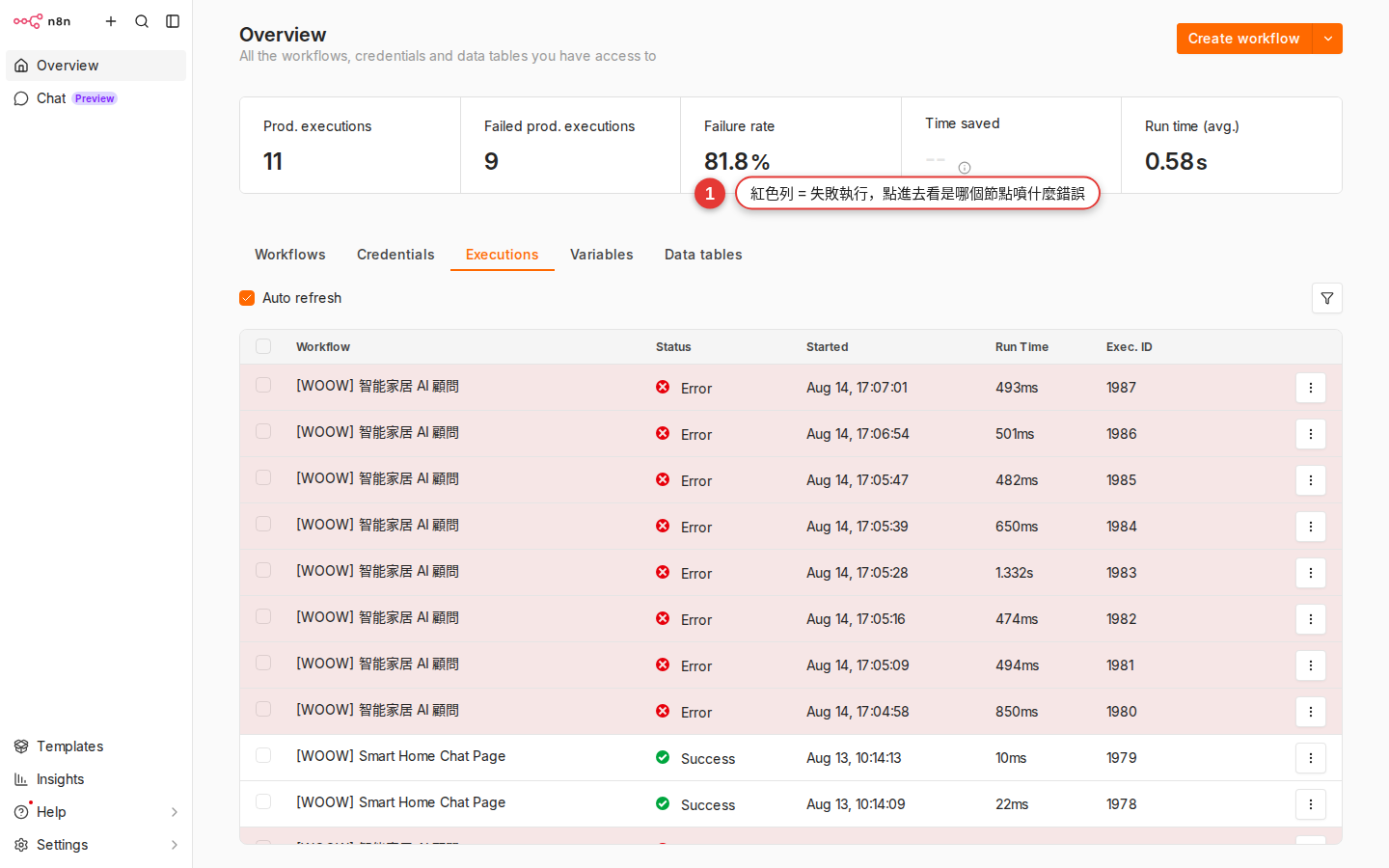
Figure B-1 Executions history: one row per run, red = failed. Open a row to see which node blew up and what the error message said. -
Does that node's credential still work?
Credentials in the sidebar, find the credential that node uses, open it, and look for the Reconnect or test button in the top right. Run it once and see whether the green check is still there. Eight out of ten cases of "it ran for ages and then started failing" are an expired credential.
Symptom 1: a node with a red border
Symptom: you open the workflow canvas and one node's border is red (not a red connection — the node's own border), or there is a red exclamation mark in its top-right corner. Open the parameter panel and some fields carry a note in red.
| Likely cause | How often it happens | How to spot it |
|---|---|---|
| No credential selected, or it points at a deleted one | About 60% | The Credential field at the top of the parameter panel is blank, or shows No credential selected |
| A required field is empty | About 25% | Red text under a field says This field is required |
| The node version moved on and the old parameters no longer map | About 10% | A yellow "Newer version available" banner at the top of the parameter panel, or a parameter field has disappeared |
| Expression syntax error (an unclosed brace, for example) | About 5% | Red text under the Expression field, and the preview shows [Expression error] |
The fix:
-
Click the node to open its parameter panel
See exactly which field is in red — n8n tells you outright what is missing.
-
If the Credential field is blank, fill it in first
Pick an existing one from the dropdown, or press + on the right to create one on the spot (see Chapter 13).
-
Fill in every required field
Every field with red text under it has to be filled. Mixing up Expression mode and Fixed mode throws this error too.
-
If it is a version upgrade, add the node again
Delete the old node, press Tab to open the nodes panel, search for the same node name (
Slack, say), then pick the new version and rewire it. n8n does not carry your parameters over, so you usually have to fill them in again.
Symptom 2: 401 Unauthorized
Symptom: a red execution, you click the node, and the error message contains 401, Unauthorized, Invalid credentials, Authentication failed. Most common on nodes like HTTP Request, Slack, Gmail and Google Sheets.
What it means: their API is saying "who are you? I do not know you" — you did not get the address wrong, authentication failed. Three possibilities:
| Likely cause | Typical case |
|---|---|
| The credential was wrong from the start | A character missing from the pasted API key, a mistyped password, a Bearer token without the Bearer prefix |
| The OAuth token expired and was never refreshed | A Slack, Google or Notion OAuth authorization runs for weeks and then suddenly 401s — usually the refresh token expired too, or was revoked |
| The other side revoked the API key | A colleague pressed "regenerate key" in the API console, a rotation policy swapped the key automatically, or a security system flagged something and disabled it |
The fix:
-
Credentials in the sidebar, then find that credential
Work back from the name in the node panel's Credential field.
-
OAuth type: press Reconnect and authorize again
Their consent window (Slack / Google) opens; walk through it, then come back and look for the green check.
-
API key type: generate a new key in their console and paste it back
For example, Notion → Settings → Integrations → generate a new secret; paste it into that n8n credential → Save → press Test.
-
Go back to the workflow and run it once more
Press Retry on the Executions page (top right of that execution), or just trigger it by hand with Execute Workflow.
Symptom 3: 403 Forbidden
Symptom: the error message contains 403, Forbidden, Insufficient permissions, Missing scope.
What it means: they know who you are (the credential is fine), but they are saying you do not have permission to do this. The difference from 401 matters:
| Status code | What it means | Where to fix it |
|---|---|---|
401 Unauthorized |
They do not know who you are | The credential (reconnect it, or swap the key) |
403 Forbidden |
They know who you are, but you are not allowed to do this | Permissions in their console, or the OAuth scope |
Common situations:
- You granted only the read scope during the OAuth consent, but the workflow needs write — Google Sheets authorized read-only while your node is set to Append Row, for example.
- Your company's Google Workspace admin turned off access to an API (the Gmail API not being open to service accounts, say).
- The Slack bot was never invited into the channel — it has
chat:write, but it cannot post to a channel it is not in. - The API console downgraded that key's permissions.
The fix:
-
Read the missing scope name out of the error message
They usually name the missing scope outright, for example
Missing scope: files.write. -
Back to the Credentials page, press Reconnect, and grant more scopes
The OAuth consent window lists the permissions it is asking for — grant more of them this time.
-
If it is not OAuth, add the permission in their console
Slack: invite the bot into the channel. Notion: share the page with the integration. Google Workspace: ask IT to open it up.
Symptom 4: 404 Not Found
Symptom: the error message contains 404, Not Found, Resource not found. Most common on the HTTP Request node — you called an address that does not exist on their server.
90% of the time the URL is misspelled. Checklist:
| Check | Common mistake |
|---|---|
| URL typo | /user/ vs /users/, a missing s, one / too many |
| API version prefix | The docs say /v1/messages and you only called /messages |
| Wrong environment | Calling the production URL with a sandbox credential (or the other way round) |
| The ID an expression filled in is empty | The URL is /users/{{ $json.id }}, but there is no id field upstream, so the call goes to /users/undefined |
| The API really is gone, or moved | The endpoint in the old docs is deprecated; go and read their current docs |
The fix:
-
Paste the URL into Postman or curl and call it by hand
Same headers, same auth, and see whether you get a 404. If Postman 404s too, the URL is the problem; if Postman gets a 200 and n8n gets a 404, an expression in n8n filled in the wrong value.
-
For the part an expression fills in, open the node's Output panel and check
Look at the previous node's actual
$jsonand see whether the field you referenced is there. Chapter 14 showed you how to read it. -
Confirm the endpoint in their official API docs
Search Google for "[service name] API [action]" and find the current official docs — third-party blog posts are often out of date.
Symptom 5: 429 Too Many Requests
Symptom: the error message contains 429, Too Many Requests, rate limit exceeded, quota exceeded.
What it means: you are calling too fast, and the SaaS on the other end is protecting itself by asking you to slow down. You did nothing wrong — your pace simply does not match their rate-limit policy.
Three fixes (you can combine them):
| Approach | When it applies | How to set it |
|---|---|---|
| Add a Wait node to slow down | Processing many items in bulk (sending 500 customers one notification each, for example) | Add Wait 1 second after each item, or wait once every N items |
| Batch it with Split In Batches | A large amount of data arrives at once (reading 1000 rows from a sheet, for example) | The Split In Batches node → batch size 10 → a Wait inside the loop |
| Turn on Retry on fail for the node | The occasional 429 (mostly fine, but you hit one now and then) | Node Settings → Retry On Fail = ON → Max Tries 3 → Wait Between Tries 5000ms or more |
The typical combined pattern:
Google Sheets (read 500 rows)
    ↓
Split In Batches (batch size = 10)
    ↓
HTTP Request (call their API)  <- Retry on fail enabled, 5000ms
    ↓
Wait (1 second)
    ↓
(back to Split In Batches for the next batch)Retry-After header (a number of seconds, or an HTTP date) — the HTTP Request node can read $response.headers['retry-after'] on the Error output and decide how long to wait from that, which is more precise than sitting out a fixed number of seconds.Symptom 6: 5xx errors and timeouts
Symptom: the error message contains 500 / 502 Bad Gateway / 503 Service Unavailable / 504 Gateway Timeout, or ETIMEDOUT / ECONNRESET / Request timed out / Execution timed out / Socket hang up.
What it means: almost none of these are your fault — their server is down or overloaded, the network cannot get through, or you waited for them so long that you gave up. To tell which:
| What the error looks like | What it is | How to fix it |
|---|---|---|
500 / 502 / 503 / 504 |
Their server is temporarily down or overloaded | Wait a few minutes, then press Retry on the Executions page; check their status page; turn on Retry on fail for the node |
ETIMEDOUT / Request timed out (one node) |
Their API is too slow and went past the node's timeout setting | Raise the node's Add Option → Timeout (to 30000ms, for example) |
Execution timed out (the whole workflow) |
The workflow ran too long and was cut off as a whole | Raise Workflow Settings → Timeout Workflow; the real fix is to break it up into sub-workflows |
ECONNREFUSED / ENOTFOUND |
The network cannot reach them (bad DNS, a firewall in the way) | Check the URL spelling, whether their IP is on your allowlist, and whether the company firewall blocks outbound traffic |
The golden pattern for 5xx:
-
Run it again first
Open that entry on the Executions page and press Retry in the top right. Most 5xx errors clear up on their side within minutes.
-
Check their status page
Search Google for "[service name] status". Common ones:
status.slack.com,www.githubstatus.com,www.google.com/appsstatus. If there is an outage, wait for them to fix it; if there is not, keep digging. -
Turn on Retry on fail for the node
Most 5xx errors are transient. Turn Retry on (Max Tries 3, Wait Between Tries 2000ms) and it usually clears itself — you will not even hear about it afterwards. The most useful pattern Chapter 17 teaches.
Slack (renew 2027-01), for example) and swap it out proactively before it lapses.Symptom 7: the webhook never arrives / Webhook not found
Symptom: an outside system calls the Webhook URL but the workflow does not move — no new record on the Executions page, no Slack message, nothing at all. Or their HTTP client gets a 404 Webhook not registered / The requested webhook is not registered error straight back.
Three common causes:
| Cause | How to tell | How to fix it |
|---|---|---|
| The workflow is not Active | The toggle in the top right is grey (Inactive) | Switch it to green (Active) |
| They are calling the Test URL, not the Production URL | The Test URL path contains /webhook-test/ and the Production URL path is /webhook/; hand them a URL with -test in it and they run into "it listens once, then stops" |
Give them the Production URL (switch to the Production URL tab at the top of the node panel and copy it) |
| The network or a firewall blocks it | curl-ing the URL yourself does not get through either | On self-hosted n8n, check the reverse proxy configuration, the port you expose, and the SSL certificate |
Debugging steps:
-
The Webhook node, then copy the Production URL
Not the Test URL. The difference is in the path: the Test URL is
/webhook-test/xxx, the Production URL is/webhook/xxx. The Test URL only listens while you have pressed Listen for Test Event; once the workflow is Active, only the Production URL counts. -
Call it once with curl from outside your network
Use your phone's hotspot so you do not go through the company LAN:
curl -X POST https://your-n8n.com/webhook/xxx -d 'test'. A 200 back means the URL works; no connection means a network problem. -
curl works but nothing shows in Executions
Check that the workflow is Active, that the Webhook node's HTTP Method (GET vs POST) matches what they use, and that the path is not misspelled.
-
curl works, the workflow ran, but nothing downstream moved
That is not a webhook delivery problem — it is a downstream node. Go back to Executions and see which node failed.
Webhook not registered back. When you set the URL up for an outside system, always use the Production URL (path /webhook/, no -test), and the workflow has to be Active. This is the number-one gotcha with the Webhook node.Symptom 8: sub-workflow not found / an error inside the sub-workflow
Symptom A (not found): the Execute Workflow node reports Workflow not found, Could not find workflow with ID.
Symptom B (it blew up inside and the parent cannot say where): a node inside the sub-workflow failed, and the parent's Execute Workflow node shows the same Error executing sub-workflow or Problem in sub-workflow either way — you cannot see which node blew up, so you have to go back to Executions and open the sub-workflow's own entry.
What it means: the sub-workflow this Execute Workflow node was pointed at cannot be found any more — it was deleted, moved to another workspace, or its workflow ID changed.
Common causes:
- Someone deleted the sub-workflow (by accident).
- The sub-workflow moved from Personal to Workspace (or the other way round): the ID stayed the same, but access changed.
- You exported from environment A (test, say) and imported into environment B (production, say) — the workflow ID it referenced does not exist in B.
- The sub-workflow was replaced by a new version and the old ID was deleted.
The fix:
-
Open the Execute Workflow node
See what the Workflow dropdown currently points at. If it is blank, or red text says it cannot be found, this is your problem.
-
Pick the right sub-workflow from the dropdown again
Choose the one that exists now — if the name is right, select it.
-
Save the parent workflow
Ctrl+S to save, and the workflow ID mapping refreshes.
-
If you moved environments, sweep every node after the import
Once a workflow exported from A lands in B, every Execute Workflow node has to be re-picked by hand; n8n does not map the IDs for you.
-
Symptom B: read the sub-workflow's error in the sub-workflow's own Executions
The Execute Workflow node's error message is only a wrapper — the real cause is in the sub-workflow's own execution record. Switch to the sub-workflow's name at the top of the Executions page and open the entry with the matching timestamp. By default an error in a sub-workflow bubbles up and fails the parent too; if you do not want the parent to die with it, set an Error workflow on the sub-workflow, or turn on Continue On Fail in the parent's Execute Workflow node Settings — then the sub fails but the parent keeps running.
Symptom 9: an expression returns undefined
Symptom: undefined, [object Object] or an empty string turns up in a Slack message or an email body — the workflow did not fail, the data just went in wrong.
What it means: the field path you referenced in the expression does not exist in the actual $json. Three typical mistakes:
| The wrong way | Symptom | The fix |
|---|---|---|
| The upstream node never emits that field | {{ $json.name }} → undefined |
Open the upstream node's Output panel, see what the field is really called, and fix the expression |
| The path is mistyped (case, underscores) | The API returns userName and you wrote username |
Copy the exact field name from the Output panel (or click it with n8n's fx picker) |
| The item is an array but you read it as an object | Upstream is [{id:1}, {id:2}] and {{ $json.id }} gives you undefined |
Change it to {{ $json[0].id }}, or put a Split Out node in front to break the array into separate items |
Debugging steps:
-
Open the red entry on the Executions page
Or run Execute Workflow by hand once to reproduce the error.
-
Click the node before the one that misbehaved
Look at what its Output holds — is the JSON
{name: "..."}, or{user: {name: "..."}}, or[{name: "..."}]? -
Re-pick the field with the fx picker
The fx button beside the Expression field opens the picker; click the field you want in the upstream node's real output. An expression the picker writes is always correct.
-
Add a Set node to supply a default
If the upstream leaves the field out now and then, put a Set node in front to fill in a default value (
name = {{ $json.name || "Anonymous" }}, for example) so nothing downstream prints undefined again.
[object Object] usually means you dropped a whole object in as a string ({{ $json }}, for example). To see the whole object use {{ JSON.stringify($json) }}; for one field use {{ $json.field }}.Other common pitfalls
The nine above all come with a clear error message. The ones left are the "no obvious error, but something is off" kind — how to tell, and how to fix them:
| Symptom | Cause | How to fix it |
|---|---|---|
| The whole n8n site will not open | The n8n instance is down; or your network cannot reach it; or the SSL certificate expired | Try your phone's hotspot first, to rule out your own network; if it still fails, ask IT — usually a self-hosted container died and needs a restart |
| The Executions page is empty | (1) the workflow has never really run; (2) the retention window (EXECUTIONS_DATA_MAX_AGE, measured in hours, default 336 = 14 days) has passed and the old records were purged; (3) a filter is hiding them; (4) EXECUTIONS_DATA_SAVE_ON_SUCCESS / _ON_ERROR is off, so that class of run is not kept |
Trigger it once by hand with Execute Workflow; clear the filter at the top; ask IT to check the retention setting and the save policy |
| Two people edit the same workflow at once and one person's changes vanish | n8n has no built-in merge — whoever saves last overwrites the earlier person's edits wholesale | Agree that only one person edits at a time; export a JSON backup before editing an important workflow; keep the JSON in Git for version control |
| You broke it and want to roll back, but there is no versioning | n8n Community has no native workflow versioning | Restore from your most recent backup; make a habit of exporting a JSON copy before a big change; track important workflows in a Git repo |
| The cron schedule does not run when it should | The timezone is wrong — the n8n instance's timezone is not the one your cron expression assumes | Set Timezone explicitly in Workflow Settings; or set the Timezone field inside the Schedule Trigger itself |
| Execute Workflow succeeds by hand, but the scheduled run fails | A manual run carries your signed-in session's permissions, while a scheduled run uses the workflow owner's — and the owner account's credentials are incomplete | Change the workflow owner to an account that has all the credentials; or share every credential the workflow uses with the workspace |
How to ask for help the right way
If you have worked through the quick reference and are still stuck, it is time to ask someone. Three channels, ordered by speed and formality:
| Channel | URL / where | Response time | Best for |
|---|---|---|---|
| Internal Slack #n8n-help | Your company Slack (if IT set one up) | Minutes to hours | Your own instance's settings, shared credentials, the traps colleagues have already hit |
| n8n Community forum | https://community.n8n.io/ |
1 to 3 days | How to configure a node, how to write an expression, how-to questions |
| n8n GitHub Issues | https://github.com/n8n-io/n8n/issues |
1 week to several weeks | Formal bug reports (with full reproduction steps) |
Include these when you ask, or nobody can help you:
- The workflow name (internal Slack only; do not post your company name on the forum)
- A screenshot of the error in Executions (capture that node's whole error panel)
- The n8n version number (bottom-right corner; the forum always wants it)
- What you have already tried (so nobody tells you to do what you did an hour ago)
- Reproduction steps (required for GitHub Issues)
Never post:
REDACTED — an n8n workflow export does not carry credential values by default, but it does carry URLs and internal API endpoints.FAQ
How quickly does official n8n support reply?
https://community.n8n.io/) usually gets you an answer in 1 to 3 days, but the person answering is a community volunteer rather than an n8n employee, so quality varies. GitHub Issues usually takes 1 week to several weeks; the n8n team handles it directly, but only for bugs, not how-to questions. Only the paid Cloud / Enterprise editions come with an official SLA on response time (Cloud Pro is usually within 24 hours, Enterprise faster). Internally, the fastest route is asking a colleague on Slack — the trap you are in is usually one somebody else already hit.Does the company have a paid support plan?
Who is responsible when the internal n8n goes down?
How do I report a bug to n8n?
https://github.com/n8n-io/n8n/issues → press New issue → pick the Bug report template. Include: (1) the n8n version number, (2) what you did (reproduction steps, written out one by one), (3) what you expected to happen, (4) what actually happened (paste the error message in; do not just screenshot it), (5) a trimmed-down workflow JSON (sensitive values removed, only the minimum that reproduces the bug). A bug report without a full reproduction usually gets closed with no follow-up.What do I do when I cannot make sense of an error message in English?
An execution is stuck on running and will not stop — what now?
I made a few edits and suddenly every node is red — how do I recover?
The error n8n shows does not match their docs — which do I trust?
invalid_auth; search that string and Slack's official API docs give you the full cause and the fix. It is even more obvious with the HTTP Request node, where the error message is their raw response.