Start from the Templates gallery
Writing a workflow from scratch is hard work. n8n and its community have built thousands of ready-made templates — "a form comes in, notify Slack", "sync Airtable data to Google Sheet", "let AI summarize your email" — copy one, change a few things, and it is yours. This chapter shows you where to find them, how to pick one, and how to get one into Woow n8n.
Why you should copy someone else's first
The pitfall beginners fall into most often in week one is opening a blank canvas and then staring at it, thinking "…which node do I drag in?". Half an hour goes by and nothing has moved.
The truth is: there is an 80% chance someone has already built what you want to build. And built it better than your first attempt would be.
- Want "a Google Form gets submitted, Slack gets notified automatically"? There is a template for it.
- Want "a new Airtable row sends the person a thank-you email"? There is a template for it.
- Want "at 9:00 every morning, pull an RSS feed, have AI write a summary and post it to Notion"? There is a template for that too.
Copying someone else's template is not laziness, it is the fastest way to see how n8n puts nodes together. You will have a working workflow in front of you within 30 minutes, which beats two weeks of feeling your way on your own.
Templates all come from one pool: n8n.io/workflows
First, clear up a common misreading: n8n itself has no built-in "offline" template gallery. The "two entry points" you think you are seeing actually lead to the same place — the public n8n.io/workflows/.
| What you assume | What is actually true |
|---|---|
| Templates in the sidebar is an offline, built-in pool that n8n curates | Clicking it takes you out to n8n.io/workflows/ in your browser (unless your company has configured a custom templates library) |
| The two sets of templates differ, so they complement each other | It is the same public pool — same content, only a different way in |
| Template pages carry install counts / star ratings you can sort by | The official gallery currently has no public install counts, star levels or ratings — only categories, keywords and service icons |
n8n.io/workflows/. The only difference is whether you jump there from the sidebar button or open the address in your browser yourself. A template you copy over is only a skeleton; it becomes yours only once you swap in your own credential and change the fields (ch6).N8N_TEMPLATES_HOST to an internal template library, then you really do get in-app browsing, and the content may be nothing but your own company's templates. Woow n8n currently runs the official default, so pressing Templates connects you out to n8n.io.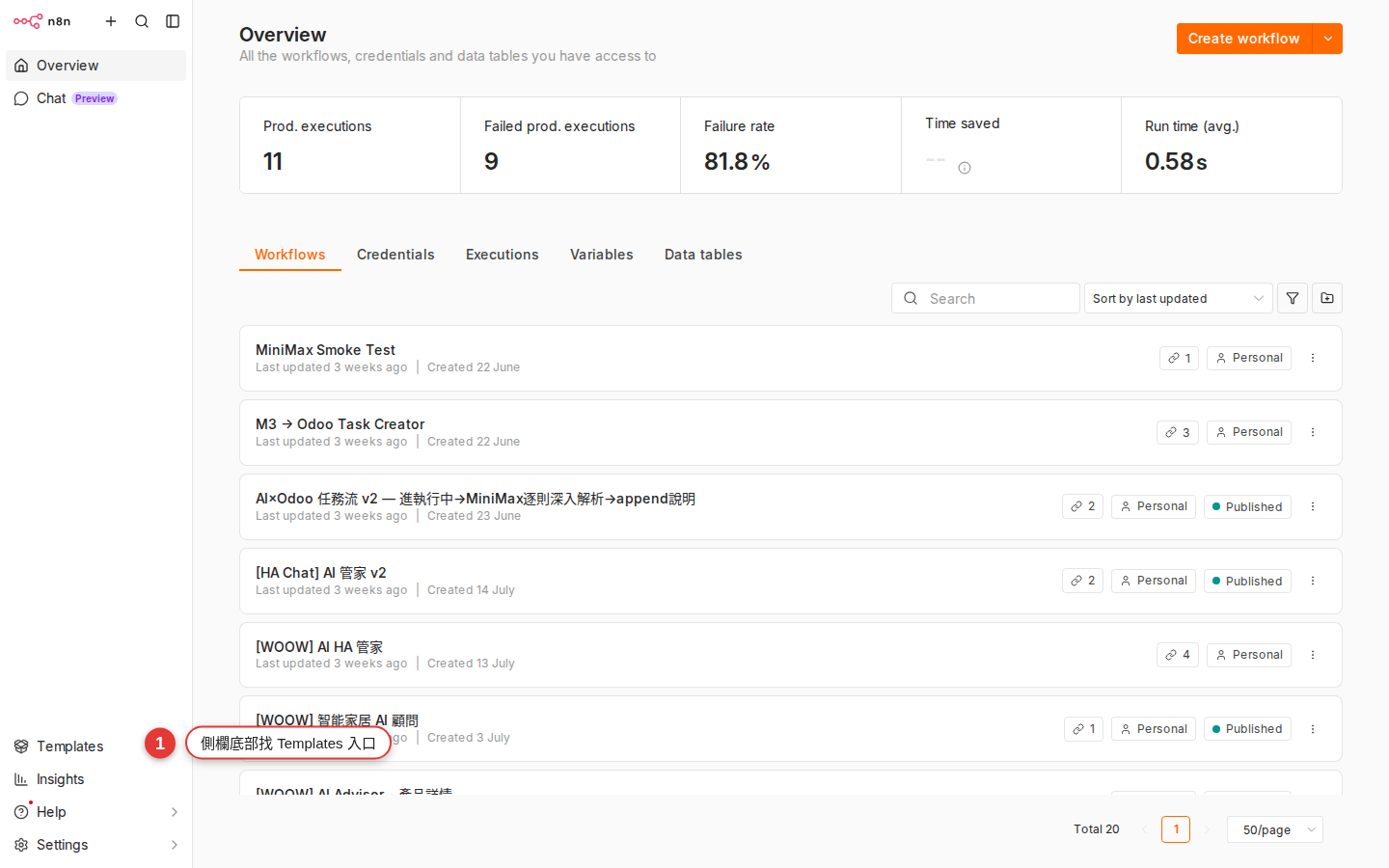
n8n.io/workflows/.How to pick a good template
The pool is large and not every template suits you. Five things to look at will rule out 80% of the duds in 10 seconds:
| What to look at | Good sign | Bad sign |
|---|---|---|
| Node count | 3–8 nodes, readable at a glance | More than 15 nodes, dizzying just to read — skip it while you are new |
| Author | The official n8n account or a Verified Creator (a check next to the avatar) | An anonymous account with no name that has uploaded only 1 template — hold off |
| Last updated | Within the past year (open the detail page and look at Last update) | Untouched for two years — the node APIs may have changed and it will not run |
| Which nodes it uses | Services you recognize (Slack, Google Sheets, Gmail) | Nothing but services you have never heard of, with no idea where to apply for the credentials |
| Description | Says plainly what it is for and what it needs | A title and no explanation — the author could not be bothered either |
Path B: open n8n.io/workflows and paste the JSON
This is Path A with the "click the sidebar" step skipped — you type the address into the browser directly. Experienced users all take this route; it saves a click.
-
Open
https://n8n.io/workflows/in your browserThe official community gallery. Categories run down the left (AI, Sales, IT Ops, Marketing, Document Ops, Support…), and you can also narrow things down by service icon (Google Sheets, OpenAI, Telegram, Gmail…).
-
Search by keyword or browse by category
For example, search
slack notification,rss to notion,ai email summary. Open a template that looks about right and run it through the five checks above. -
Click "Use for free" on the template's detail page
The orange button in the top-right corner. Clicking it opens a small dialog that usually gives you two options: copy the JSON to the clipboard (Copy template to clipboard), or jump straight to the cloud to try it out (Try it on n8n Cloud) — choose Copy.
Warning: When you see "Try it on n8n Cloud", do not click it; that lands you on n8n's official cloud rather than our Woow n8n. Your data should stay on the company's own instance. -
Go back to Woow n8n and open a workflow (a new one is fine)
Workflows page → click "+ Add workflow" to create a blank one, or open any existing one (pasting does not overwrite the nodes already there).
-
Click an empty spot on the canvas and press Ctrl+V (on Mac it is Cmd+V)
The whole workflow's nodes drop in at once, connections and all. If the shortcut does nothing, right-click the empty space for a Paste option.
-
Save it and rename it
The workflow name in the top-left corner is usually a default such as
My workflow; click it and change it to something you will recognize (for example "RSS morning digest"). Then press Save in the top-right corner, or Ctrl+S.
Three things to do after you install a template
Importing a template only borrows a skeleton; it will not run yet. Work through these in order and you will make the fewest mistakes:
-
Check every node for a red marker
A red dot / exclamation mark means the node is missing something. Eight times out of ten the credential is not connected; less often a required field is empty (the recipient email address, for example). Start from the most upstream Trigger node and fix your way down.
-
Check which outside services it wants and whether you have them
If the template uses Airtable and your company has no Airtable account, that template is no use to you — give up early and pick another. Or switch it to Google Sheets (you can, but that counts as editing the template; see ch6).
-
Run Execute workflow by hand first
Use the purple Execute workflow button in the bottom-right corner to run it by hand. Only green checks all the way through mean the whole chain works. Until a run succeeds, leave the Active toggle off.
Can you change a template? Yes, and you should
A template is only a starting point. Once you copy it over, the whole thing is yours and you can change it however you like:
- Turn the Slack notification into a Gmail message.
- Add an IF node so the notification only goes out when the amount is > 1000.
- Delete the nodes you do not use (the "sync to Airtable" step that community author threw in, say, which you have no use for).
- Change the English field text into Chinese.
The more you change, the further it moves from the original template, and the more it looks like something you built. Chapter 6 walks through the whole process of editing someone else's workflow.
Common pitfalls
-
Clicking Templates in the sidebar does nothing / the tab will not open
Clicking it should open another browser tab at
n8n.io/workflows/. If nothing happens: (a) the browser blocked the popup — click the popup notice at the right of the address bar and allow it; (b) the company network blocksn8n.io— type the address into the browser to test; (c) if IT really has blocked it, take the "import a JSON file someone else downloaded" route (ch5). -
You paste JSON from n8n.io and nothing arrives
90% of the time something went missing during the copy — you only picked up part of the text, for instance. Go back to that template page on n8n.io and press "Use for free" → "Copy template to clipboard" again; that is what copies the complete JSON. Also make sure you clicked an empty spot on the canvas (not a node) before pasting.
-
Every pasted node is a red error
Two main causes: (a) the credentials are not set yet, so click each red node and connect one; (b) your n8n does not have the node version the template uses — Unknown node type shows at the bottom, and the only ways out are a newer template or upgrading n8n.
-
The imported workflow has an odd name, such as "My workflow 7"
Click the title in the top-left corner to rename it. Get into the habit of changing it to a "purpose_service" format right away (for example
rss_morning_digest_slack), so that you can find it in the workflow list later. -
The template description calls for a node I cannot find here
The node may not be included in the n8n community edition (some nodes are enterprise-only), or your company may have disabled that integration on Woow n8n. Ask IT, or switch to a template built from basic nodes plus HTTP Request. The HTTP Request node can stand in for almost any SaaS-specific node.
-
The manual run passed, but it fails overnight once Active is on
The usual cause: your manual run used test data you pasted in yourself, and when the schedule fires for real the outside API returns differently shaped fields. See Appendix B for the matching symptom.
FAQ
Do I have to start from a template? Can I write my own from scratch?
Can someone else's template carry a virus or malicious code?
Code node with JavaScript / Python inside. Before you import, open every Code node and read what the code does, and be especially alert to anything that calls an outside address or sends data somewhere unidentified. Templates from an author with the Verified Creator check next to their name, or from the official n8n account, are comparatively safe.Are all templates free? Will one start charging partway through?
Can I contribute a template back to the community after I have changed it?
n8n.io/workflows/, and it needs an n8n.io account. But do not rush — you have only just started. Let your workflow run steadily inside the company for a few weeks, clear out the sensitive credentials, internal URLs and company names, and then think about contributing.Does importing a template use up my executions quota?
Can I import a lot of templates at once? Will it get messy?
Playing around, Live — which makes it easy to clean up later.