Managing credentials: keys, OAuth, and where sharing stops
By now you have wired up Slack, Gmail and Google Sheet, but one question has never been answered properly: what gives a workflow the right to send messages, read mail and write spreadsheets "as you"? The answer is the credential — one set of account authorization details that n8n keeps encrypted for you. This chapter shows you how to set up an OAuth authorization, how to paste in an API key, the three ways to share with colleagues, and the one thing you must never forget to take with you when you back up. Once this chapter has sunk in, you will not be the person at work who pastes the boss's Slack token into a workflow in plain text.
Why credentials deserve real care
When you dropped a Slack node onto the canvas in Chapter 11, n8n made you pick a "Credential to connect with". What sits in that dropdown is a credential — one SaaS account authorization that n8n keeps for you. Without it, the Slack node still throws Authentication failed at run time even when every node parameter is filled in correctly.
But credentials come with a dilemma:
- Manage them nowhere central: every workflow stores its own copy of the token, so one password change means editing a dozen of them; and when a colleague leaves, you have no idea where they tucked their tokens away.
- Share one copy across the company: the moment somebody slips and exports a workflow as JSON to share it, the token leaks.
- Fail to back up the encryption key: after a server move or a disaster restore, the credential data is still there but nothing can open it — every workflow dies.
This chapter settles three things: (1) how to create both credential types (OAuth2 vs API Key); (2) the three ways to share with colleagues, and where each one stops; (3) where credentials actually live, how the encryption works, and what you have to carry along when you back up.
What a credential actually is
In one sentence: a credential is the set of account authorization details n8n keeps for you, so a node can pull them out automatically when it calls an outside service. Think of your browser's saved passwords, but for workflows.
Three properties matter:
- It lives in the n8n database, not on your computer and not in the workflow JSON file. Move a workflow to another n8n and you have to bind the credential again.
- It is stored encrypted, using the n8n instance's
N8N_ENCRYPTION_KEYenvironment variable. Not even you can see the plaintext (only the credential's name and type). - It is user-level (owned by whoever created it), not workflow-level. A credential you create goes into your personal space by default, and other signed-in users cannot see it; the same account can reuse one credential across many workflows and many nodes. Delete a credential and every node that references it turns red and stops working. To share it across people you go through the "Sharing" mechanism (see the Sharing with colleagues section).
Where is the Credentials page? Chapter 3 already walked you past it — Credentials at the bottom of the sidebar (in some versions the icon is a little key). Click in and you get a table listing every credential in your workspace: name, type and last-modified time.
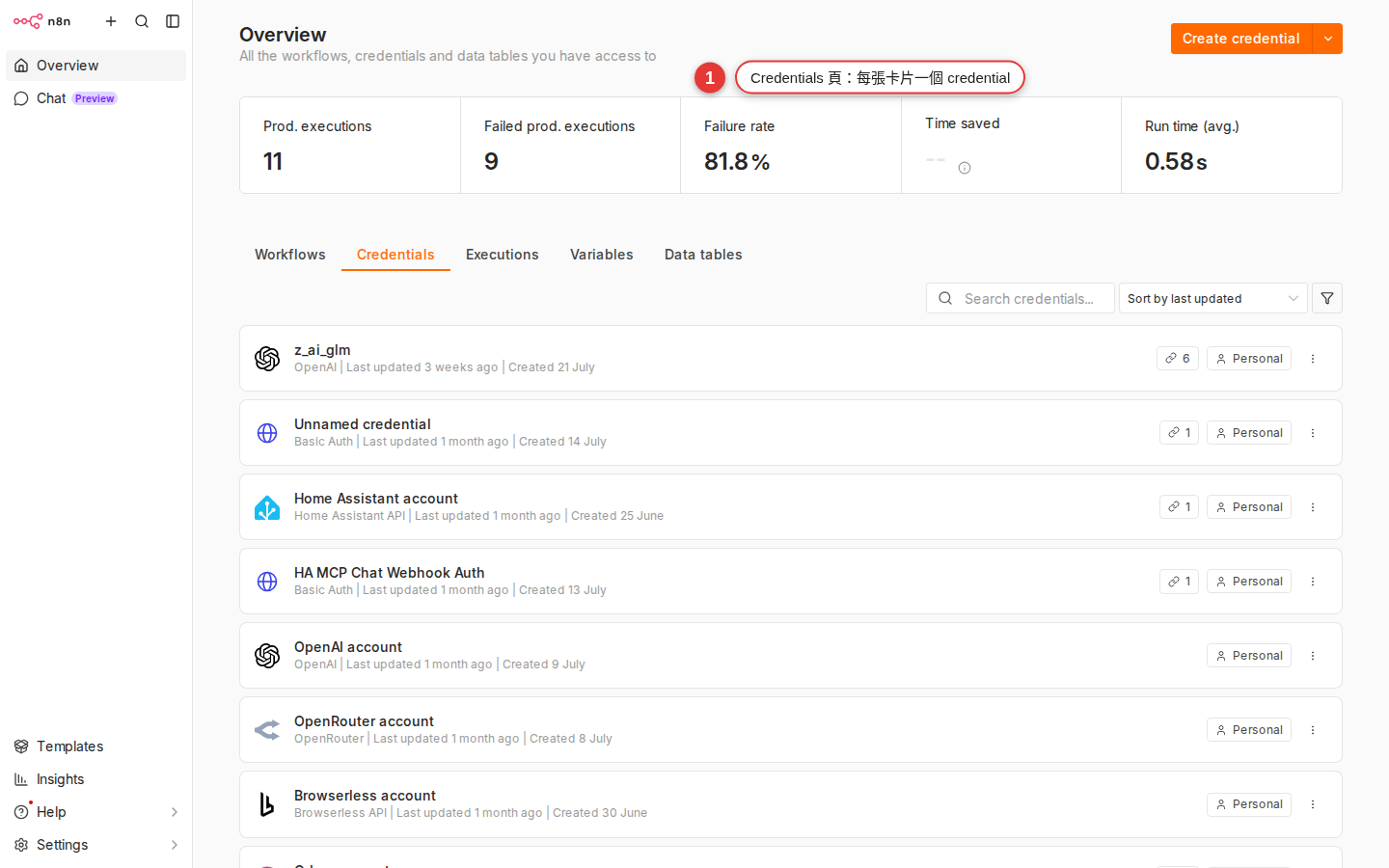
The two credential types
The hundreds of credential types fall into two groups. Recognize these two and you can handle almost anything:
| Type | How you authorize | Typical services | Setup effort |
|---|---|---|---|
| OAuth2 | Press Connect → you are sent to the provider's site to sign in → click "Allow" → you come back and the token arrives automatically |
Google (Gmail / Sheet / Drive / Calendar), Slack, GitHub, Notion, the Microsoft family, HubSpot, Salesforce | Medium (you need a Client ID/Secret; many built-in credentials come pre-filled) |
| API Key / Bearer Token | Create a key in the provider's console → copy and paste it straight into n8n | OpenAI, Anthropic, Airtable, SendGrid, Stripe, Twilio, most developer APIs | Easy (one field, paste the key) |
Two rarer variants exist as well — do not be alarmed when you meet them:
- Basic Auth: paste a username and password directly (common on older internal APIs, some corporate LDAP setups for example).
- Header Auth / Custom Auth: some non-standard APIs want a special field in the header, and this flexible authorization type covers them. It is the usual partner for the HTTP Request node when you call an API in the wild.
Hands-on: create a Google OAuth2 credential
The most common situation — the company needs a workflow to read and write Google Sheet, send Gmail and store files on Drive, all authorized by the same Google OAuth2 credential. Walk through it once and you will have it:
-
Sidebar Credentials → New credential
Click Credentials in the sidebar, then Add credential at the top right (or Create new credential in the middle of an empty workspace). A "Select credential type" search box opens.
-
Search for Google → pick the right credential type
Type
googleand a pile of options appears: Google OAuth2 API (the generic one), Google Sheets OAuth2 API, Gmail OAuth2 API, Google Drive OAuth2 API and so on. The rule is pick the OAuth2 credential that matches the node you are going to use — it is all Google OAuth underneath, but the scopes differ. For the Gmail node, pickGmail OAuth2 API. -
Create an OAuth Client in the Google Cloud Console (for the Client ID/Secret)
If this is your first one, n8n asks you for a Client ID and a Client Secret — you get both by creating an OAuth 2.0 Client ID at console.cloud.google.com. The steps: create a Project → APIs & Services → Credentials → Create Credentials → OAuth client ID → Web application → paste the OAuth Redirect URL n8n shows you (something like
https://n8n.woowtech.io/rest/oauth2-credential/callback) into Authorized redirect URIs → save, and you have the Client ID / Secret.Tip: WoowTech IT has already built a shared OAuth Client, so just ask IT for the Client ID / Secret instead of opening a new Project yourself. Sharing one keeps quota management and audit logs in a single place. -
Paste the Client ID / Secret into n8n
Back in the n8n credential form, paste the Client ID you just got from the Google Console into the Client ID field and the Client Secret into the Client Secret field. Leave Scope at its default in most cases (each credential type ships with the scopes people usually need — Gmail OAuth includes send/read/labels, Sheets OAuth includes read and write).
-
Press Sign in with Google → Allow → get the token
Press Sign in with Google at the top right (other versions call it Connect my account or OAuth2) and a new window opens on the Google consent screen — pick your Google account → read the "n8n wants to access your Gmail…" list → press Allow. Once the popup closes, the n8n page shows a green check and Account connected.
-
Name it and save
Change the credential name at the top to something recognizable, for example
Gmail ([email protected])orGoogle Sheets - CS team. Press Save. From now on that name is selectable in the Credential dropdown of your Gmail / Sheet / Drive nodes.
Hands-on: create an API key credential (OpenAI as the example)
The API Key type is far simpler than OAuth — no bouncing between sites, just one key pasted in. Using OpenAI as the example:
-
Create an API key in the OpenAI console
Sign in at platform.openai.com/api-keys, press Create new secret key, give it a name (
n8n-woow-prod, for example) and choose All permissions (or read-only if that is all you need). The key is shown exactly once — if you do not copy it you can never get it back, so paste it into n8n immediately. -
Credentials page → New credential → search for OpenAI
Back in n8n: sidebar Credentials → Add credential → type
openaiin the search box and pick OpenAI. -
Paste the API key in
There is a single API Key field; paste the key you just copied. Organization ID can usually stay empty (unless you belong to several OpenAI organizations and have to name one).
-
Name it and save
Change the credential name to something like
OpenAI (marketing team). Press Save — done, and much faster than OAuth.
Connection tested successfully means the auth works; it does not mean the scope is enough — only a real run tells you that.How credentials relate to workflows
This is where a lot of beginners get lost — a credential and a workflow are two separate resources. Once that clicks, you understand why credentials do not travel with a workflow you move to another server.
| Problem | credential | workflow |
|---|---|---|
| Where does it live? | The n8n database, credentials table (encrypted) |
The n8n database, workflow_entity table |
| Can it be exported as JSON? | Not recommended on Community (risk of leaking plaintext) | Yes (Ctrl+S to save / Download from the menu) |
| How many things can use one copy? | One credential can be reused across many workflows and many nodes by the same user; sharing it across users depends on Sharing / Project (Enterprise only) | One workflow can reference several different credentials (read the Sheet with A, post to Slack with B, for example) |
| What happens if you delete it? | Every node that references it turns red (Credential ID not found) | Deleting it on its own does not affect the credential; the credential stays |
Another way to look at it — the n8n database is really two big tables: one holds credentials (an encrypted safe full of tokens), one holds workflows (the node structure). A node inside a workflow stores only the reference "which credential ID I use"; the actual token value is not in the workflow file.
Where credentials are stored and how safe they are
Three questions IT always asks: where it lives, how the encryption works, what a backup has to include. All of them, in one go:
-
It lives in the n8n database (the credentials table)
Whether you self-host on SQLite or on Postgres, credentials go into a table called
credentials(orcredentials_entity). One row per credential, with columns includingid,name,typeanddata— and thatdatais the encrypted JSON blob (it holds the sensitive values: token, API key, OAuth refresh_token and the rest). -
Encryption uses the N8N_ENCRYPTION_KEY environment variable
On startup n8n reads the
N8N_ENCRYPTION_KEYenvironment variable and uses it as the symmetric encryption key (AES from crypto-js underneath). Credentials are encrypted with that key before they go into the DB and decrypted on the way out. If the variable is not set the first time n8n starts, n8n generates one and writes it into the settings file under~/.n8n(in practice~/.n8n/config) — and from then on you must never lose that key. In a queue mode deployment, always set theN8N_ENCRYPTION_KEYenvironment variable by hand, and give every worker the same value, or the workers cannot decrypt the credentials. -
Always carry the encryption key along with the backup
Backing up n8n by dumping SQL alone is useless — every credential in the database is ciphertext, and if the new server has a different encryption key on restore, all of them become garbage nobody can open and every workflow dies. Do it properly: keep the DB dump,
~/.n8n/configand the value of theN8N_ENCRYPTION_KEYenvironment variable together, all three. -
Not even the Owner sees the plaintext
Even as the workspace Owner, the credential detail page shows the token field as blank (meaning "saved") or as a row of dots; you never see the real value. That is deliberate — it stops insiders, admins included, from copying tokens out by accident or on purpose. The only way to the plaintext is reading the DB with SQL and decrypting it with the encryption key (which needs root).
N8N_ENCRYPTION_KEY to git, do not paste it into Slack, do not leave it in Notion for anyone to read. Once that key leaks, anyone holding your DB dump can decrypt every credential. Store it internally at the same level as your database password and your SSH private key.N8N_ENV_FEAT_ENCRYPTION_KEY_ROTATION=true; it works on every self-hosted version). Once it is on, N8N_ENCRYPTION_KEY becomes the "master key" that protects an inner data key, and Settings → Data Encryption Keys in the UI lets you rotate that inner key — so you can change the credential encryption key on a schedule without touching the master key. Warning: this is a one-way setting; once on it cannot be turned off, so back up the DB before you enable it.The day-to-day life of a credential
Every credential goes through these stages from creation to deletion. Learn them and you can run dozens of credentials without breaking a sweat:
| Stage | How to do it | Watch out |
|---|---|---|
| Create | Credentials page → Add credential → pick the type → fill the fields → Save | Give it a recognizable name; note who owns it / which team / which environment |
| Edit | Click the credential name on the Credentials page → change the fields → Save; or open it from a node that has gone red | Every node that references it picks up the new value automatically; you do not edit them one by one |
| Test | The Test button at the top right of the credential detail page (most types have one; OAuth uses Reconnect) | A passing Test only proves the auth is right, not that the scope / permissions match the node you want to run |
| Reconnect (expired OAuth) | When the OAuth token refresh fails the credential turns red; press Reconnect to run the authorization flow again | Most OAuth tokens refresh automatically; you only do it by hand after a password change, a revoked scope, or a long gap with no runs |
| Delete | Select the credential on the Credentials page → Delete | It affects every workflow that references it — all those nodes turn red with Credential ID not found. Check "Usage" first to see which workflows depend on it |
Troubleshooting
The pitfalls you will hit sooner or later when you manage credentials, listed in one place:
-
The OAuth popup comes back and you are still not signed in
Symptom: you press Sign in with Google, the popup opens the Google consent screen, you click Allow, and back in n8n it is still gray with no green check. Nine times out of ten the OAuth Redirect URI is wrong — the Authorized redirect URIs in the Google Console must match the URL shown on the n8n credential page exactly (https included, trailing slash included, domain included). Ask IT to compare the two sides and copy it across again.
-
A credential suddenly expires and stops working
For OAuth types n8n refreshes the token automatically most of the time and you never notice. But these situations make the refresh fail and need a manual Reconnect: (1) the account's password was changed; (2) the app authorization was revoked by hand on the Google side; (3) the refresh token expired (Google expires one after 6 months of disuse); (4) the OAuth Client Secret was revoked in the Google Console.
-
A node turns red with Credential ID not found
Two possibilities: (1) somebody deleted that credential — create a new one and re-pick it in the node's credential dropdown; (2) you exported the workflow JSON from n8n A into n8n B and the credential IDs do not line up — again, rebuild the credential in n8n B and bind it again. That is the unavoidable price of keeping credentials and workflows apart.
-
The Test button returns 401 / 403
Two possibilities: (1) an API Key type — the key is mistyped, you dropped a character while copying, or the key has already been revoked in the console; (2) an OAuth type — the scope is not enough (you picked
Google Sheets OAuth2, say, but the same OAuth authorization never granted Drive access), so Reconnect once more and tick every permission you need on the Google page. -
The Test button passes but the node still will not run
Test usually only makes "the simplest possible API call" to prove the account is alive (GET /me, for example) — but your node needs a more advanced operation (posting to a private Slack channel, writing to a locked Google Sheet), and the scope or permissions may fall short. Test passes, and the real run throws
insufficient_permissions; Reconnect and make sure the scopes are complete. -
After a backup restore, no credential opens
The classic symptom: you restore the DB dump on a new server and every credential shows an error or simply cannot be decrypted. The cause: N8N_ENCRYPTION_KEY did not come along. The fix: find the old server's encryption key (in
~/.n8n/configor in the environment variables), set the same-named environment variable on the new server, and restart n8n. This is the most common restore disaster; put the key into your backup plan from day one. -
The credential I just created is missing from the dropdown
Two reasons: (1) the credential type does not match the node — you will never find a Gmail credential inside a Slack node, because the Slack node only accepts
Slack APIorSlack OAuth2; (2) the workspace you created the credential in is not the workspace you are editing the workflow in (only Enterprise has the project concept; on Community there is usually one workspace with one copy).
FAQ
A colleague leaves — what happens to the credentials they created?
Both cases have traps. (1) On the Community edition every credential is locked inside its creator's personal space, so once the departing employee's account is disabled those credentials are locked in there with it — every workflow that references them turns red, and the owner has to transfer credential ownership out through the DB or the CLI, or simply rebuild them. (2) Enterprise has Sharing / Projects, so an admin can transfer ownership to whoever takes over from the Users settings. Either way, on the day they leave, remember to re-authorize or revoke in the SaaS console every Gmail/Slack/API Key they bound (rotate the token), so they cannot reach company data through an old token after they are gone.
Can a credential be exported as a JSON file?
On the Community edition, not recommended. In theory the n8n CLI (n8n export:credentials) can export them, but the default is plaintext and the token sits exposed in the file — put that in git or share it and you have a security incident. If you must export, add --decrypted=false to keep it encrypted, and use it for backup only; do not send it to anyone. If you really do need to move credentials between n8n instances, the safest route is rebuilding them by hand in the new environment.
Two workflows need different Slack accounts — what do I do?
Create two credentials. For example Slack Bot - #ops-alerts (account A) and Slack Bot - #marketing (account B); the Slack node in each workflow picks the matching one from its Credential dropdown. Creating 100 Slack credentials under one workspace is no problem at all.
The Test button passes but the workflow will not run — what is going on?
Test usually makes only the most basic API call (/me or /ping) to prove the account is still alive. But the node you want to run may need a more advanced scope or permission — posting to a private Slack channel needs the chat:write.private scope, and writing to a Google Sheet needs the spreadsheets scope, not just spreadsheets.readonly. The reverse happens too (Test fails, the real run is fine) — Test is inaccurate against some APIs, and if a rate limit blocks it the two results disagree. Trust the real run; Test is only a quick smoke test.
Which is safer, OAuth or API Key?
Use OAuth wherever you can. Why: an OAuth token has a lifetime (it refreshes automatically or expires), the provider can revoke it unilaterally from their console, and it is limited by scope (read without write, for example); an API key usually lasts indefinitely, grants everything the moment you hand it over, and has to be revoked by hand in the provider's console. A few services (OpenAI, Anthropic) only offer API keys, so there you have no choice — but make sure you: (1) give the key a recognizable name; (2) rotate it on a schedule (every 3 months, for example); (3) restrict it by IP wherever that is possible.
Is dumping the DB enough when I back up n8n?
No. You have to back up N8N_ENCRYPTION_KEY along with it, or after the restore every credential is ciphertext nobody can open and all your workflows die. WoowTech's standard backup routine: (1) the Postgres/SQLite DB dump; (2) the ~/.n8n/config file (it holds the encryption key); (3) the list of environment variables (which may also hold the encryption key); (4) the ~/.n8n/binaryData/ attachment directory. All four together make a complete backup. For the details see Appendix A · Settings reference and Appendix B · Error troubleshooting.
Can I put an API key inside a Code node?
Never. Code node contents are stored as plaintext in the workflow JSON, so anyone with read access to the workflow can see them; the moment somebody exports the workflow to share it, the key goes out with it. Do it properly: create a Header Auth or HTTP Custom Auth credential and put the key in there, then have the Code node or the HTTP Request node reference that credential. The key stays encrypted, and you can share the Code node contents without worrying.
Does the Community edition isolate credentials per user? And how do we share?
The other way round — the Community edition is fully isolated by default: every credential a user creates sits in their own personal space, where nobody else can see it or select it. What is missing is the sharing mechanism: you cannot share the marketing account's Gmail credential with a colleague on Community (no Sharing tab, no Projects). In practice a small team either signs in as the same n8n user (not ideal) or each person rebuilds their own copy. For "isolated, but shareable when you choose" you have to move up to Enterprise (Sharing + Projects + RBAC) or to n8n Cloud Pro / Enterprise (Sharing built in).
Where do I look up the official credential docs?
Three places: (1) the overview at docs.n8n.io/credentials/; (2) OAuth configuration detail at docs.n8n.io/hosting/configuration/oauth/; (3) Sharing and permission management at docs.n8n.io/user-management/rbac/. Each credential type (Gmail OAuth2, Slack API, OpenAI and the rest) also has its own page describing which fields to fill in.
What do I learn in the next chapter?
Chapter 14 covers expressions — how to write {{ $json.field }} in a node field to pull data from the previous node. With credentials that connect and expressions that fetch data, your workflows move on from "copies of someone else's" to "whatever you want to build".